Web app · Food & drink
Lunch Roulette: let the wheel decide where to eat
Spin the wheel to pick a lunch spot for your team. Veto any pick and spin again until everyone agrees.
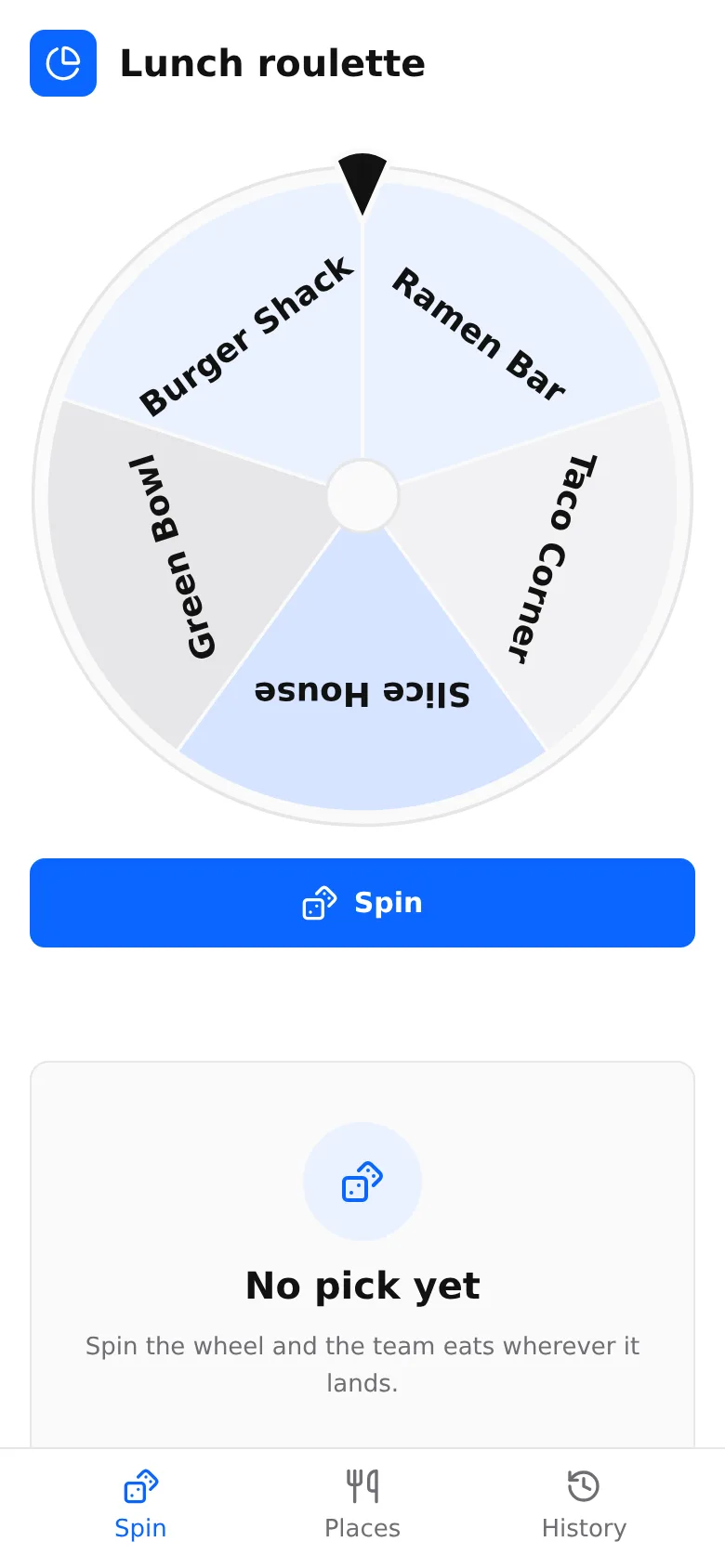
Picking where the team eats lunch wastes time and leads to arguments. Lunch Roulette puts all the lunch spots in a wheel, spins it randomly, and lets anyone veto the pick and try again. You can add as many spots as you want, see which places got vetoed this round and by whom, and keep a history of where you've eaten.
What it does
You add lunch spots to a list, then spin a wheel that randomly picks one. The team can veto the pick, which removes it from the wheel for that round and shows who vetoed it. Once someone accepts the pick by pressing Let's Go, it gets added to your history with the date. You can reset vetoes for a new round, restore individual vetoed spots, and manage your lunch spot list by renaming or deleting places.
Key features
- Spin the wheel The wheel randomly picks a lunch spot from your list each time you spin.
- Veto and try again Anyone can veto a pick, optionally recording who vetoed it, and the wheel spins for another choice.
- Lunch history Every accepted pick is saved with the date so you can see where you've eaten.
- Manage spots Add, rename, or delete lunch spots, or load five sample spots to start.
- Track vetoes See which spots were vetoed this round and restore any if the team changes its mind.
How to use it
- Go to Places and add lunch spots by typing a name and clicking Add.
- Go to Spin and click the wheel to spin and pick a random spot.
- Click Veto if the team doesn't want that spot, or Let's Go to accept it.
- Check History to see all the lunches you've picked.
Who it’s for
Teams, groups, and offices that eat lunch together and want a fair, fun way to decide where to go without debating.
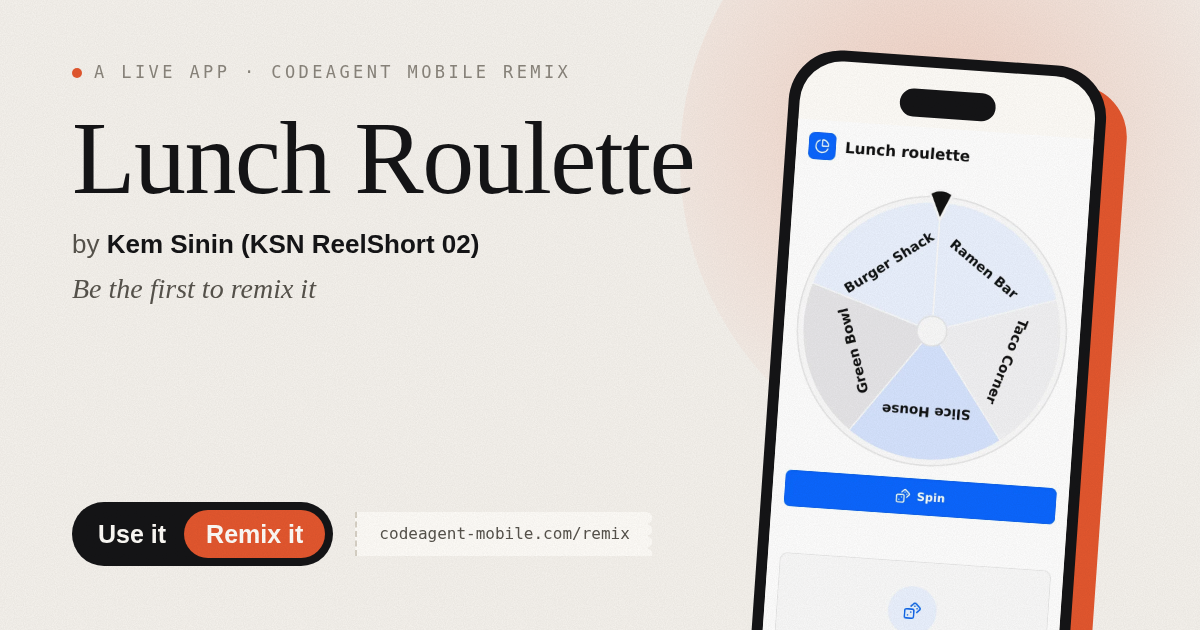
The app’s share card (1200×630)
Questions and answers
How do I start?
Go to the Places tab and add at least one lunch spot. You can type the name and click Add, or click Load samples to start with five examples. Then go to Spin and spin the wheel.
Does it save my spots and history?
Yes, your lunch spots, vetoes for the current round, and history are saved in your browser. They stay there until you clear them.
Can multiple people use this together?
This app works on one device. Everyone can see the wheel and history on that device, and anyone can veto or accept picks by pressing the buttons.
What happens when all spots are vetoed?
The app shows a message that everyone vetoed everything. Click Reset vetoes to put all spots back on the wheel for a new round.
More food & drink apps
- Community Beat · साझा बीट बनाएँ: स्टेप दबाएँ, डीजे प्रीसेट चुनें, और सब मिलकर संगीत तैयार करें। वीडियो में एक्सपोर्ट करें।
- Community Beat · Tap drum steps on a shared 16-step beat that everyone editing it hears together. Load DJ presets, mute and solo tracks, export video or audio.
- Meow Translator · Tap to decode your cat's meows into theatrical translations, then blast them with a dramatic soundboard. Fun for cat lovers and parties.
- Haunted Beat · A shared drum machine where everyone taps the grid together to build beats. Dancing pumpkins groove to the rhythm you create.
- Community Beat · Coloca casillas en pistas de batería y escucha el patrón que todos construyen juntos en tiempo real. Exporta tu sesión como video o audio.
- Icebreakers · Swipe through fun, deep, work, and family icebreaker questions and save your favorites for parties and teams.