Web app · Social & party
Seating Chart: arrange guests at round or long tables
Seat guests at round or long tables, pair couples, flag conflicts, and print the final seating list.
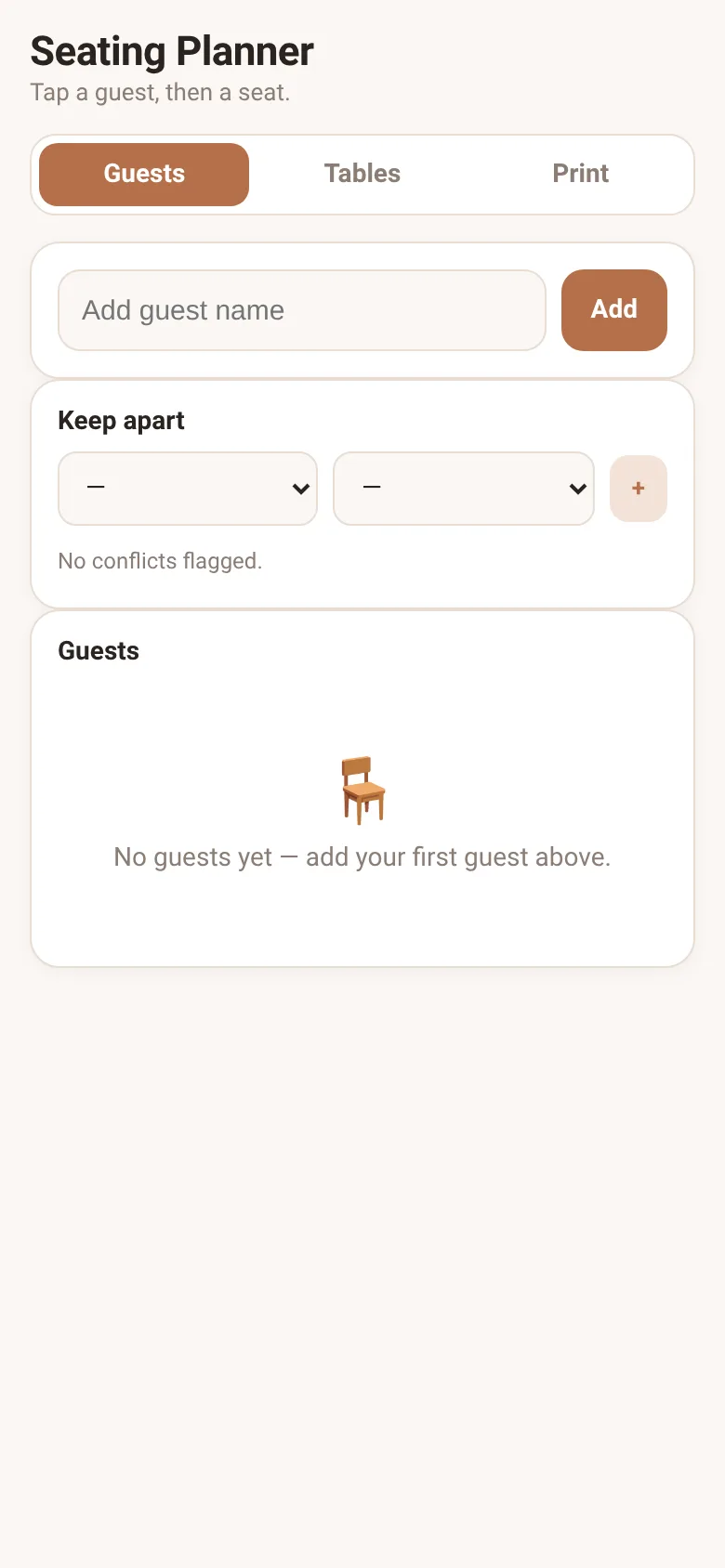
Hosting a dinner or wedding means deciding who sits where—and keeping feuding guests apart while keeping couples together. Seating Chart lets you add your guest list, mark which pairs should sit together, flag guests who shouldn't sit near each other, then arrange everyone at round or long tables. Once the seating is right, print a numbered list of who sits where.
What it does
You add guest names one by one, then pair any two as partners who should sit together. You flag pairs of guests who should not sit together—they'll show a warning if placed at the same table. You create round or long tables and set how many seats each has. To seat someone, you tap their name to select them, then tap an empty seat. The app shows you a conflict warning if you place someone next to a guest they shouldn't be near. Once everyone is seated, the Print tab shows a full list of the seating by table and seat number, ready to print.
Key features
- Add guests and pair partners Enter each guest by name, then pair any two as partners who should sit together.
- Flag guests who should not sit together Mark pairs of guests who shouldn't sit near each other; the app warns you if you try to seat them at the same table.
- Round and long tables Create round or long tables, adjust the seat count for each, and see a live layout.
- Tap to seat, tap to unseat Select a guest, then tap an empty seat to place them; tap a filled seat to move or remove them.
- Printable seating list View a text list of all guests, their table, and seat number, and print it directly from the app.
- Saves your work All guests, tables, partners, and conflicts are saved in your browser so you can close and return later.
How to use it
- Open the Guests tab and add each guest's name one by one.
- Pair any two guests as partners by tapping the heart icon next to their name, then tapping another guest.
- Flag any pair who shouldn't sit together by selecting them in the Keep Apart dropdowns and tapping plus.
- Open the Tables tab and create round or long tables, adjusting seat counts as needed.
- Select a guest and tap an empty seat to place them; the app warns if they conflict with nearby guests.
- Open the Print tab to review the full seating list, then print or save it.
Who it’s for
Anyone planning a dinner or wedding who needs to arrange guests at tables while keeping partners together and conflicts apart.
The app’s share card (1200×630)
Questions and answers
How do I start?
Go to the Guests tab and add each guest's name. Then switch to Tables to create your round or long tables.
Does the app save my seating plan?
Yes. All guests, tables, pairings, and conflicts are saved in your browser automatically, so you can close the app and return to finish later.
Can I see the seating list to print?
Yes. Once you've seated everyone, go to the Print tab to see a full list by table and seat number. You can then print or save it from your browser.
What happens if I try to seat conflicting guests together?
The app shows a warning icon next to their name in the table view, so you know there's a flagged conflict at that table.
More social & party apps
- Community Beat · साझा बीट बनाएँ: स्टेप दबाएँ, डीजे प्रीसेट चुनें, और सब मिलकर संगीत तैयार करें। वीडियो में एक्सपोर्ट करें।
- Community Beat · Tap drum steps on a shared 16-step beat that everyone editing it hears together. Load DJ presets, mute and solo tracks, export video or audio.
- Meow Translator · Tap to decode your cat's meows into theatrical translations, then blast them with a dramatic soundboard. Fun for cat lovers and parties.
- Haunted Beat · A shared drum machine where everyone taps the grid together to build beats. Dancing pumpkins groove to the rhythm you create.
- Community Beat · Coloca casillas en pistas de batería y escucha el patrón que todos construyen juntos en tiempo real. Exporta tu sesión como video o audio.
- Icebreakers · Swipe through fun, deep, work, and family icebreaker questions and save your favorites for parties and teams.