Web app · Tools & utilities
Twilight Web OS: a fake desktop in your browser
Chat, video call with simulated FaceTime, and launch games on Roblox, Fortnite, PlayStation 5 and Xbox from one desktop-like interface.
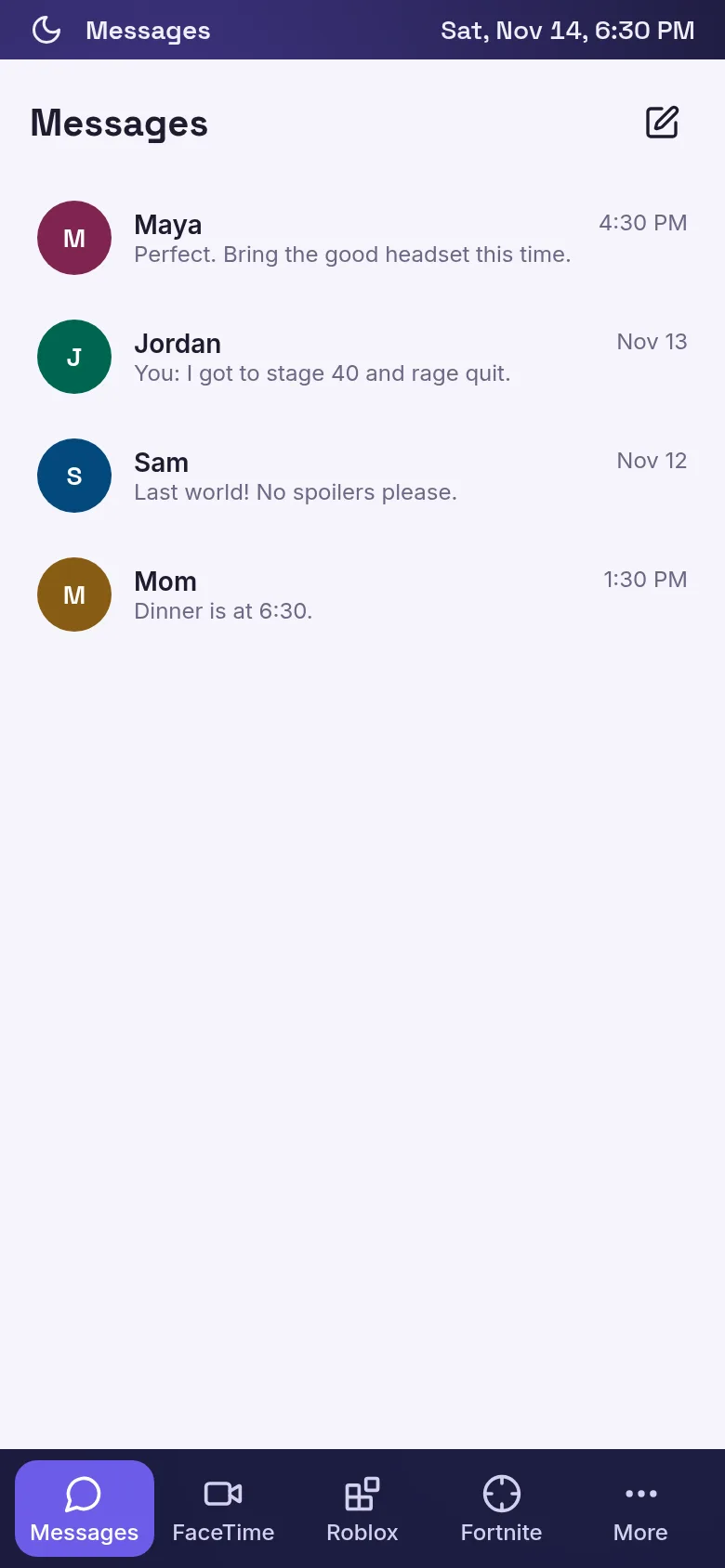
Twilight Web OS brings a desktop experience to your browser. You get a familiar interface with a menu bar, dock, and resizable windows that work like a real computer. Send messages to simulated contacts, start a FaceTime video call with your camera (or just use your avatar), and launch games across four major gaming platforms—all without leaving the web.
What it does
The app shows a desktop with a dock at the bottom (on computers) or tabs at the bottom (on phones). Click or tap to open Messages, where you create conversations and send text back and forth; open FaceTime to call one of ten sample contacts and optionally turn on your camera; or open a game launcher for Roblox, Fortnite, PS5 or Xbox, each displaying a curated list of games you can filter by genre and search. Every app runs in a resizable, draggable window you can minimize and bring to focus.
Key features
- Messages Send and receive text messages in conversations with sample contacts; create new conversations or delete old ones.
- FaceTime Start a simulated video call with any contact, toggle your microphone and camera on or off, and see call history with duration and time.
- Game Launchers Browse games for Roblox, Fortnite, PlayStation 5 and Xbox, each with its own theme and color scheme; filter by genre, search by title, and open the official site for any game.
- Desktop-like Windows Apps open in windows you can move, minimize, close and bring to focus; on phones, apps use full-screen tabs instead.
- Menu Bar and Dock On desktop, a menu bar at the top shows the active app and a dock at the bottom shows all open windows; phones show tabs at the bottom instead.
How to use it
- Click or tap Messages to open it and start a conversation with a sample contact.
- Tap FaceTime to call someone; press the camera icon to request your webcam.
- Open any game launcher from the dock or tab bar to browse games for that platform.
- Search or filter games by genre, then click the link to open the official site for a game.
- Click the red phone icon or camera buttons to control your call during FaceTime.
Who it’s for
People who enjoy simulation games, want to explore a fake desktop in the browser, or are curious about how a web-based OS might work. It works on both desktop computers and mobile phones.
The app’s share card (1200×630)
Questions and answers
Do games run inside Twilight Web OS?
No. The game launchers are links to the official Roblox, Fortnite, PS5 Store and Xbox websites. Click a game to open its page in a new tab.
Is the FaceTime call real?
No, it is simulated. You can turn your camera on and it will show in a corner window, but nobody is on the other end. The app records the call duration in your recents.
Can I save my messages and calls?
Messages and calls stay in the app while you are using it. When you refresh the page, they are cleared unless you reset the app on the reset menu.
Does it work on my phone?
Yes. On phones smaller than 700 pixels wide, the interface switches to tabs at the bottom instead of a dock and desktop windows.
More tools & utilities apps
- Community Beat · साझा बीट बनाएँ: स्टेप दबाएँ, डीजे प्रीसेट चुनें, और सब मिलकर संगीत तैयार करें। वीडियो में एक्सपोर्ट करें।
- Community Beat · Tap drum steps on a shared 16-step beat that everyone editing it hears together. Load DJ presets, mute and solo tracks, export video or audio.
- Meow Translator · Tap to decode your cat's meows into theatrical translations, then blast them with a dramatic soundboard. Fun for cat lovers and parties.
- Haunted Beat · A shared drum machine where everyone taps the grid together to build beats. Dancing pumpkins groove to the rhythm you create.
- Community Beat · Coloca casillas en pistas de batería y escucha el patrón que todos construyen juntos en tiempo real. Exporta tu sesión como video o audio.
- Icebreakers · Swipe through fun, deep, work, and family icebreaker questions and save your favorites for parties and teams.