Web app · Tools & utilities
Cyber Nexus OS: A Cyberpunk Desktop Environment in Your Browser
Explore a complete operating system experience with files, terminal, editor, and system monitoring, all styled in cyberpunk design.
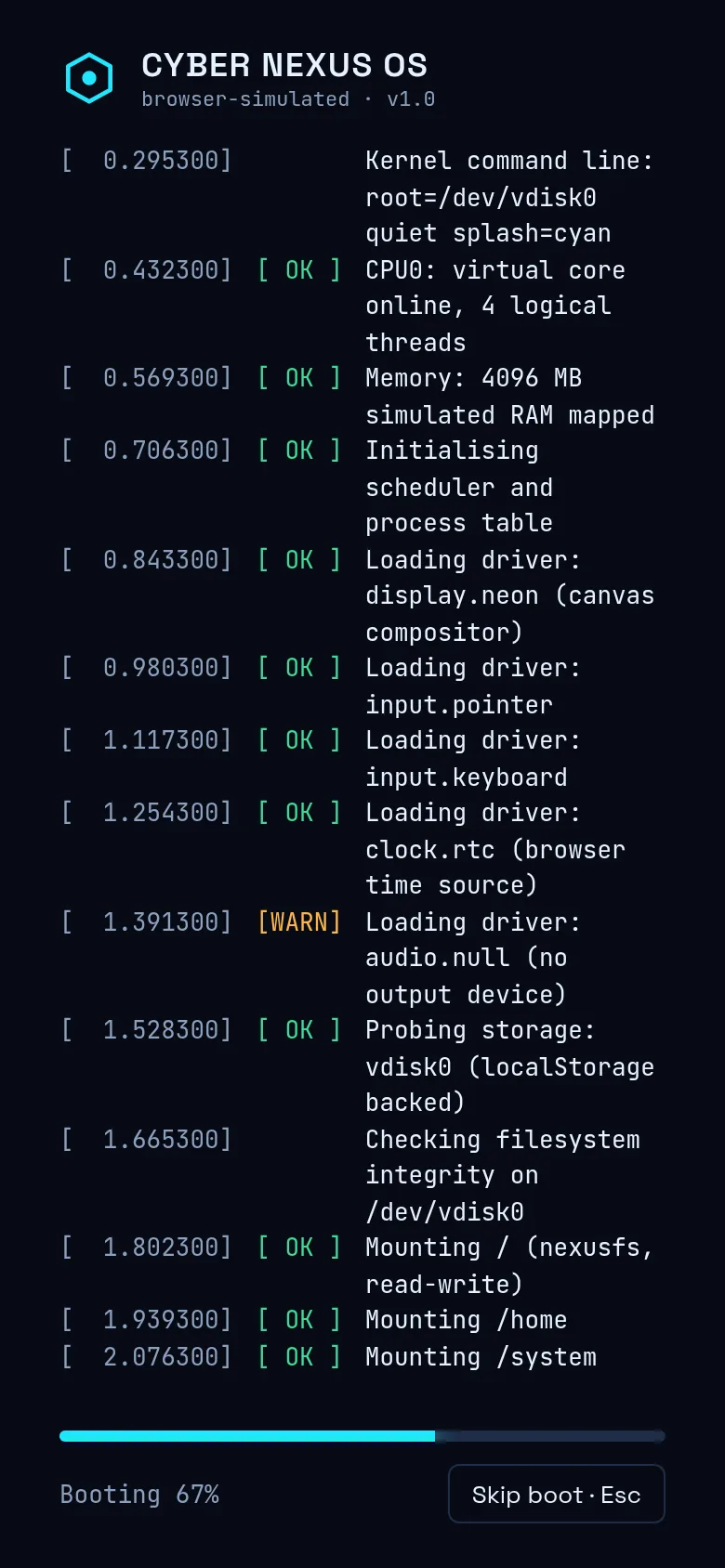
Want to experience a full desktop operating system without leaving your browser? Cyber Nexus OS brings you a working computer desktop with all the tools you need: organize files in a hierarchical file manager, write and edit text files with a built-in editor, run commands in a terminal, and monitor your system's activity. It boots with a startup sequence, then opens to a desktop where you can launch apps, navigate folders, and work just like on a real computer.
What it does
Cyber Nexus OS is a complete desktop environment that simulates a real operating system. When you open it, you see a boot screen that plays out before the desktop loads. Once booted, you get a desktop with multiple windows you can open: a Files app for browsing and managing your file system, an Editor for creating and editing text documents, a Terminal for running commands, and a System Monitor to watch resource usage. All files and their contents are stored and persist across sessions. The interface uses a cyberpunk aesthetic with neon accents and a dark theme.
Key features
- File Manager Browse, create, rename, and delete files and folders in a hierarchical directory structure with a visual file tree.
- Text Editor Edit text files with line and column tracking, unsaved-change indicators, and keyboard shortcuts like Ctrl+S to save.
- Terminal Run system commands and see output in a command-line interface integrated into the OS environment.
- System Monitor View real-time information about system performance and resource usage.
- Boot Sequence Experience a startup animation that plays before the desktop loads, adding to the immersive OS feel.
- Persistent Storage All files and their contents are saved in your browser and remain available when you return.
How to use it
- Open the app and watch the boot sequence complete.
- Once the desktop appears, click the Files app icon to open the file manager.
- Create a new file or folder using the plus buttons in the Files toolbar.
- Double-click a text file to open it in the Editor app.
- Use the keyboard shortcut Ctrl+S to save any changes you make.
- Open the Terminal or System Monitor from the desktop to see additional system tools.
Who it’s for
Creative developers, cyberpunk enthusiasts, and anyone who wants to explore an operating system concept in the browser. It appeals to people interested in retro computing aesthetics, web development experiments, and interactive digital art.
The app’s share card (1200×630)
Questions and answers
Do my files save?
Yes. All files you create and edit are stored persistently in your browser's storage, so they remain available when you close and reopen the app.
Can I use this on my phone?
Yes, it's a web app that runs in any browser. The interface is responsive, though a larger screen gives you more room for windows.
How do I create a new file?
Open the Files app, navigate to the folder where you want to create it, and click the new file button in the toolbar. Enter a name and it will appear in the file list.
What can I do with the terminal?
The terminal lets you run commands within the OS environment. The commands and output reflect the simulated operating system's capabilities.
More tools & utilities apps
- Icebreakers · Swipe through fun, deep, work, and family icebreaker questions and save your favorites for parties and teams.
- Pitch Timer · Write cue cards, pick a 30/60/90-second timer, and rehearse your pitch with haptics and per-card timing feedback.
- Sun Arc · See the sun's arc across the sky for any latitude and day, with sunrise, sunset, day length, and golden hour windows.
- Big Text · Flash giant text across a room in auto-fit or scrolling marquee mode, with color themes and a gentle blink for safety.
- Shot List · Plan video scenes with shot cards, durations, and location tags. Check off shots as you film to track progress.
- Tally Counter · Track multiple named counts with big tap targets, haptics feedback, and one-tap undo on reset.