Web app · Music & audio
Step Sixteen: build beats with a 16-step drum sequencer
Tap steps to create drum patterns across kick, snare, hi-hat, clap and tom sounds. Adjust tempo and swing, load presets, or start from scratch.
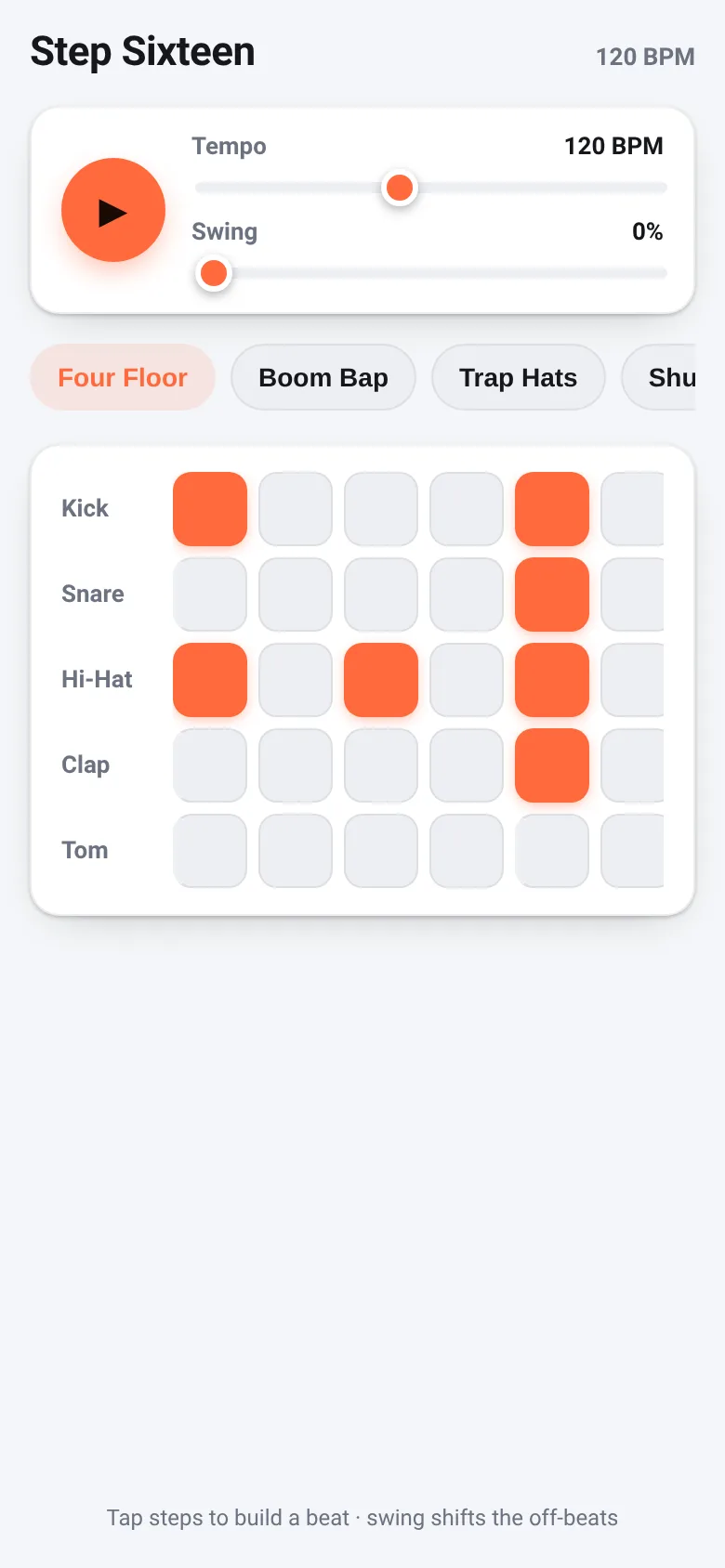
Making a drum beat from scratch can feel daunting, but Step Sixteen breaks it down into 16 simple steps. You tap a grid to turn drum sounds on or off at each step, then adjust the speed and swing feel to taste. Whether you want a four-on-the-floor house groove, a boom-bap hip-hop beat, or trap hi-hats, five preset patterns get you started—or customize any beat by tapping individual steps.
What it does
The app shows a 4-by-16 grid of buttons, one row for each drum sound (kick, snare, hi-hat, clap, tom) and one column for each sixteenth-note step. Tap any button to toggle that sound on or off at that step. Press Play and the sequencer steps through the pattern, lighting each step as it plays and triggering the sounds you've selected via Web Audio synthesis. Use the Tempo slider to set the speed from 60 to 200 BPM, and the Swing slider to shift the timing of off-beat steps for a looser feel. Choose from five preset grooves or save your custom patterns automatically.
Key features
- Five drum voices Kick, snare, hi-hat, clap and tom are all synthesized in real time with Web Audio.
- 16-step grid Tap any step to toggle a sound on or off; lit buttons show which steps trigger which sounds.
- Tempo and swing Set the beat speed from 60 to 200 BPM and add swing (0–75%) to shift off-beat timing.
- Five preset grooves Load Four Floor, Boom Bap, Trap Hats, Shuffle or House Clap with one tap.
- Playhead highlight The currently playing step lights up in real time so you can follow along.
- Auto-save Your patterns and settings are saved to the browser and restored when you return.
How to use it
- Tap the Play button to start the sequencer at the current tempo.
- Tap any button in the grid to toggle a drum sound on or off at that step.
- Drag the Tempo slider to speed up or slow down the beat.
- Drag the Swing slider to add timing variation to the off-beat steps.
- Tap a preset chip to load one of five built-in grooves.
- Tap Play again to stop.
Who it’s for
Makers of electronic music, beat producers, and anyone curious about drum sequencing. No experience needed: the presets let you hear ideas immediately, and the simple tap-to-toggle interface invites experimentation.
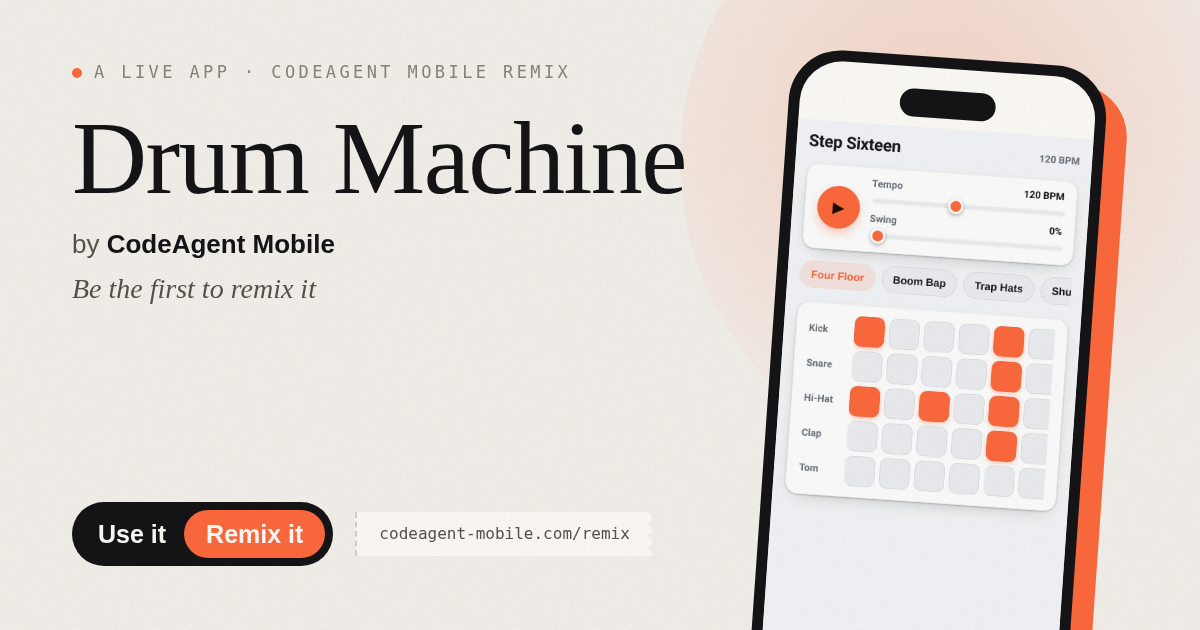
The app’s share card (1200×630)
Questions and answers
How do I start making a beat?
Tap Play to start, then tap any button in the grid to toggle a drum sound on or off at that step. The sequencer loops through all 16 steps continuously. You can tap buttons while the sequencer is playing.
Does my pattern save?
Yes. Your patterns, tempo, swing settings, and the preset you last used are saved automatically to your browser's local storage and will be there when you come back.
Can I use this on my phone?
Yes. The app works on any device with a web browser and Web Audio support. The grid layout adjusts to fit your screen.
What do the preset buttons do?
Each preset loads a different drum pattern into the grid. Once loaded, you can tap individual steps to modify it, and your changes replace the preset until you load a different one or reset your browser storage.
More music & audio apps
- Community Beat · साझा बीट बनाएँ: स्टेप दबाएँ, डीजे प्रीसेट चुनें, और सब मिलकर संगीत तैयार करें। वीडियो में एक्सपोर्ट करें।
- Community Beat · Tap drum steps on a shared 16-step beat that everyone editing it hears together. Load DJ presets, mute and solo tracks, export video or audio.
- Haunted Beat · A shared drum machine where everyone taps the grid together to build beats. Dancing pumpkins groove to the rhythm you create.
- Community Beat · Coloca casillas en pistas de batería y escucha el patrón que todos construyen juntos en tiempo real. Exporta tu sesión como video o audio.
- Chord Charts · Pick a root note and chord type to see a fretboard diagram with finger positions. Build common song progressions step by step.
- Collab Beat · Toggle steps on a shared drum loop with kick, snare, hi-hat and clap. Press play to hear the beat everyone built together, synthesized live.