Web app · Home & family
Square Foot Garden Planner
Tap squares in a 4×4 bed to plant vegetables with the right number per square and see companion planting warnings.
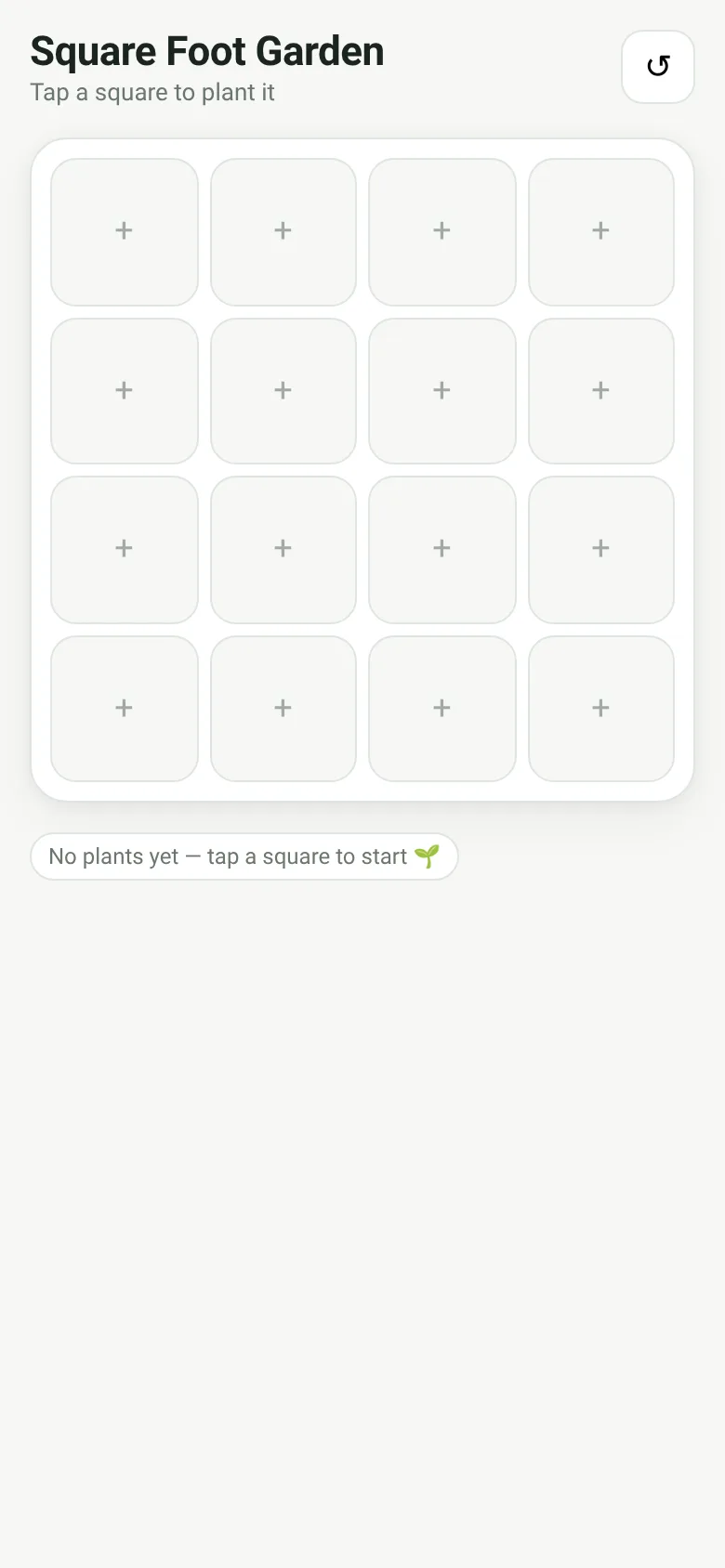
Growing vegetables in a small space is easier when you follow square-foot gardening rules: each vegetable needs a set number of plants per 12-inch square, and some plants grow better or worse next to each other. This planner shows you a 4×4 grid of your raised bed. Tap any square, choose a vegetable, and the app places the right number for that square and warns you if a neighbor will cause problems.
What it does
You see a 4×4 grid of your raised bed. Each square shows an emoji and count for what you planted there, or a + sign if empty. Tap any square to open a list of 16 vegetables with their per-square counts and sowing months. Pick one, and it fills that square. The app highlights conflicts: if tomato and basil are neighbors, no warning—they are friends. But tomato next to brassica gets a warning mark and a message at the top. A legend below shows how many squares each vegetable occupies. Tap the reset button to clear the whole bed and start over.
Key features
- 4×4 grid layout Visual representation of your raised bed divided into 16 squares, one square foot each.
- Per-square planting counts Each vegetable shows how many plants fit in one square (1 tomato, 16 carrots, 4 basil).
- Companion planting warnings Red warning marks and a banner alert when incompatible plants are placed side by side.
- Sowing month guide Each vegetable lists its recommended sowing window (Mar–May, May–Jun, etc.).
- Saves your plan Your bed layout is saved to your device automatically; refresh the page and your plan is still there.
How to use it
- Tap any empty square to open the vegetable picker.
- Choose a vegetable from the list to plant it in that square.
- Check the warning banner at the top for companion planting conflicts.
- Tap a filled square to replace it with a different vegetable or clear it.
- Use the reset button to clear all squares and start a new plan.
Who it’s for
Home gardeners planning a square-foot raised bed who want to grow the right number of vegetables in each space and avoid planting incompatible neighbors.
The app’s share card (1200×630)
Questions and answers
Does it save my plan?
Yes. Your bed layout saves automatically to your device. When you come back, your plan is still there.
What happens if I plant incompatible vegetables next to each other?
The app shows a warning mark on the conflicting squares and lists the problem at the top. You can still plant them; the warning is just advice based on companion planting rules.
Can I use this on my phone?
Yes. The app works on any device with a web browser, phone or computer.
How do I clear a square or start over?
Tap a filled square and tap Clear to remove that plant. Tap the reset button (↺) at the top to empty the entire bed.
More home & family apps
- Pesca Tranquila · Juego de pesca sin apuros donde lanzás, recogés peces, completás tu álbum de especies y mejorás tu equipo.
- Icebreakers · Swipe through fun, deep, work, and family icebreaker questions and save your favorites for parties and teams.
- Pitch Timer · Write cue cards, pick a 30/60/90-second timer, and rehearse your pitch with haptics and per-card timing feedback.
- Sun Arc · See the sun's arc across the sky for any latitude and day, with sunrise, sunset, day length, and golden hour windows.
- Big Text · Flash giant text across a room in auto-fit or scrolling marquee mode, with color themes and a gentle blink for safety.
- Shot List · Plan video scenes with shot cards, durations, and location tags. Check off shots as you film to track progress.