Web app · Art & design
Pixel Studio: 16×16 pixel art with animation
Draw pixel art frame by frame with mirror drawing, onion skin preview, and PNG export.
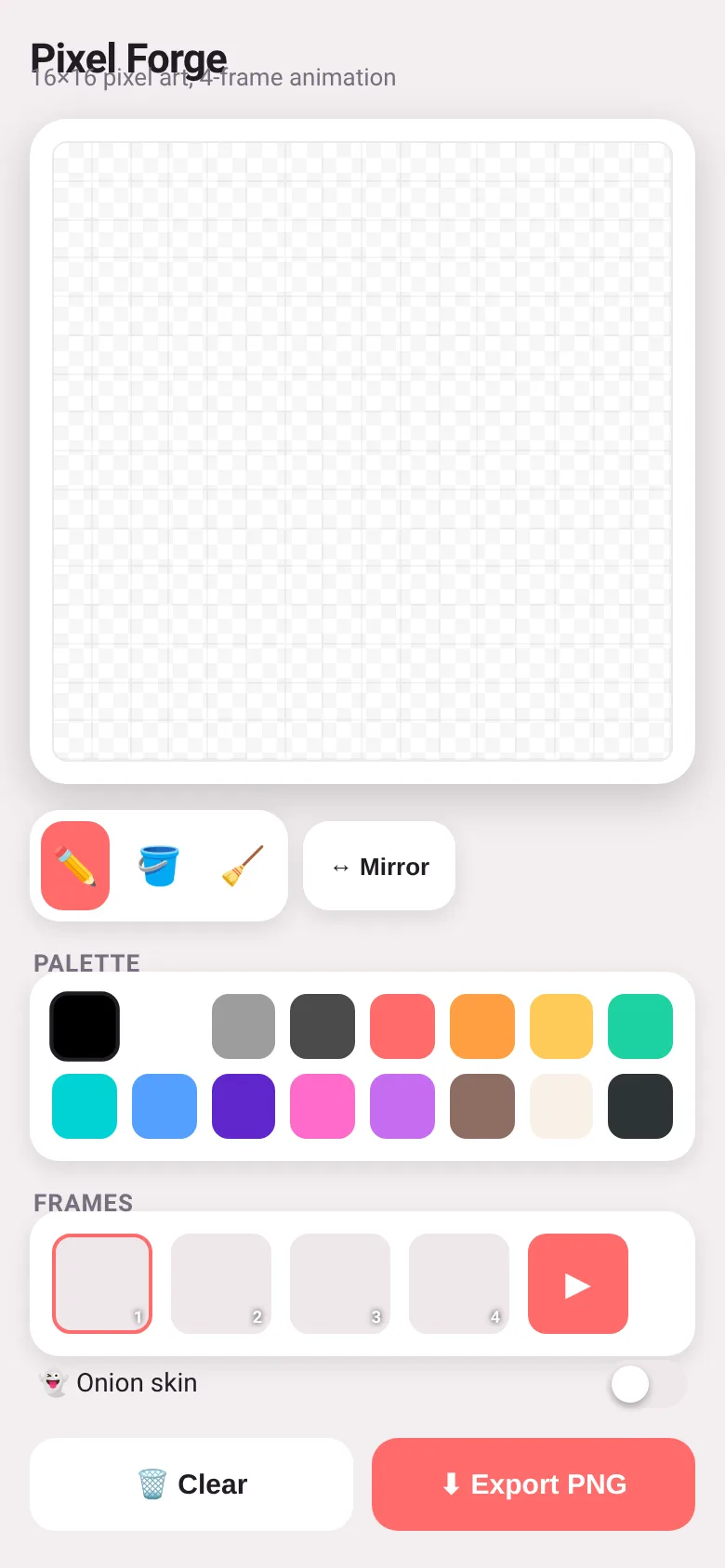
Want to create small pixel art quickly without complexity? Pixel Studio gives you a 16×16 canvas, a hand-picked palette of 16 colors, and drawing tools to sketch sprites and icons. Work across 4 frames, preview them as animation, and export each frame as PNG. Mirror mode lets you draw symmetrically; onion skin shows the previous frame faded as a guide.
What it does
You click or drag on a 16×16 grid to paint with the pencil, fill areas with the bucket tool, or erase. A palette of 16 colors sits ready to use. You can work on any of four frames and play them as a short looping animation at 260 milliseconds per frame. Toggle mirror mode to draw the same strokes on both sides of center. Turn on onion skin to see the previous frame ghosted behind your current work. When you are done, export the current frame as a PNG file scaled up for clarity.
Key features
- Three drawing tools Pencil for freehand drawing, fill bucket to color regions, and eraser to clear pixels.
- Mirror drawing Toggle mirror mode to draw symmetrically across the vertical center of the canvas.
- 4-frame animation Create and edit four separate frames, play them as a looping animation, and see frame thumbnails.
- Onion skin Turn on onion skin to see the previous frame faded behind the current one as a drawing guide.
- Curated 16-color palette A fixed set of 16 colors chosen for pixel art, from blacks and grays to bright reds, greens, blues, and purples.
- PNG export Download the current frame as a PNG file scaled 20× for easier viewing and sharing.
How to use it
- Pick a color from the palette by clicking a swatch.
- Select pencil, fill, or eraser from the tools, then draw on the grid.
- Switch between frames 1–4 by clicking their thumbnails to edit each one.
- Click the play button to preview all frames as animation.
- Click Export PNG to save the current frame as a file.
Who it’s for
Pixel artists, game developers, and anyone making retro-style sprites, icons, or small animations. Works on desktop and mobile browsers.
The app’s share card (1200×630)
Questions and answers
Does it save my work?
Yes, your art is saved in the browser each time you finish drawing. If you clear your browser data, your work will be lost.
Can I use it on my phone?
Yes, it works on phones and tablets. Tap the grid to draw; touch and drag to paint continuously.
How do I share my pixel art?
Export the frame as PNG and send the file. You can also take a screenshot of the thumbnail preview.
Can I undo a mistake?
The app does not have undo. Use the eraser to remove pixels, or click Clear to erase the entire frame.
More art & design apps
- Icebreakers · Swipe through fun, deep, work, and family icebreaker questions and save your favorites for parties and teams.
- Pitch Timer · Write cue cards, pick a 30/60/90-second timer, and rehearse your pitch with haptics and per-card timing feedback.
- Sun Arc · See the sun's arc across the sky for any latitude and day, with sunrise, sunset, day length, and golden hour windows.
- Big Text · Flash giant text across a room in auto-fit or scrolling marquee mode, with color themes and a gentle blink for safety.
- Shot List · Plan video scenes with shot cards, durations, and location tags. Check off shots as you film to track progress.
- Tally Counter · Track multiple named counts with big tap targets, haptics feedback, and one-tap undo on reset.