Mobile app · Art & design
Doodle Pad: draw smooth sketches with your finger
A lightweight drawing pad with smooth strokes, four brush sizes, a curated color palette, eraser, undo, and light or dark backgrounds.
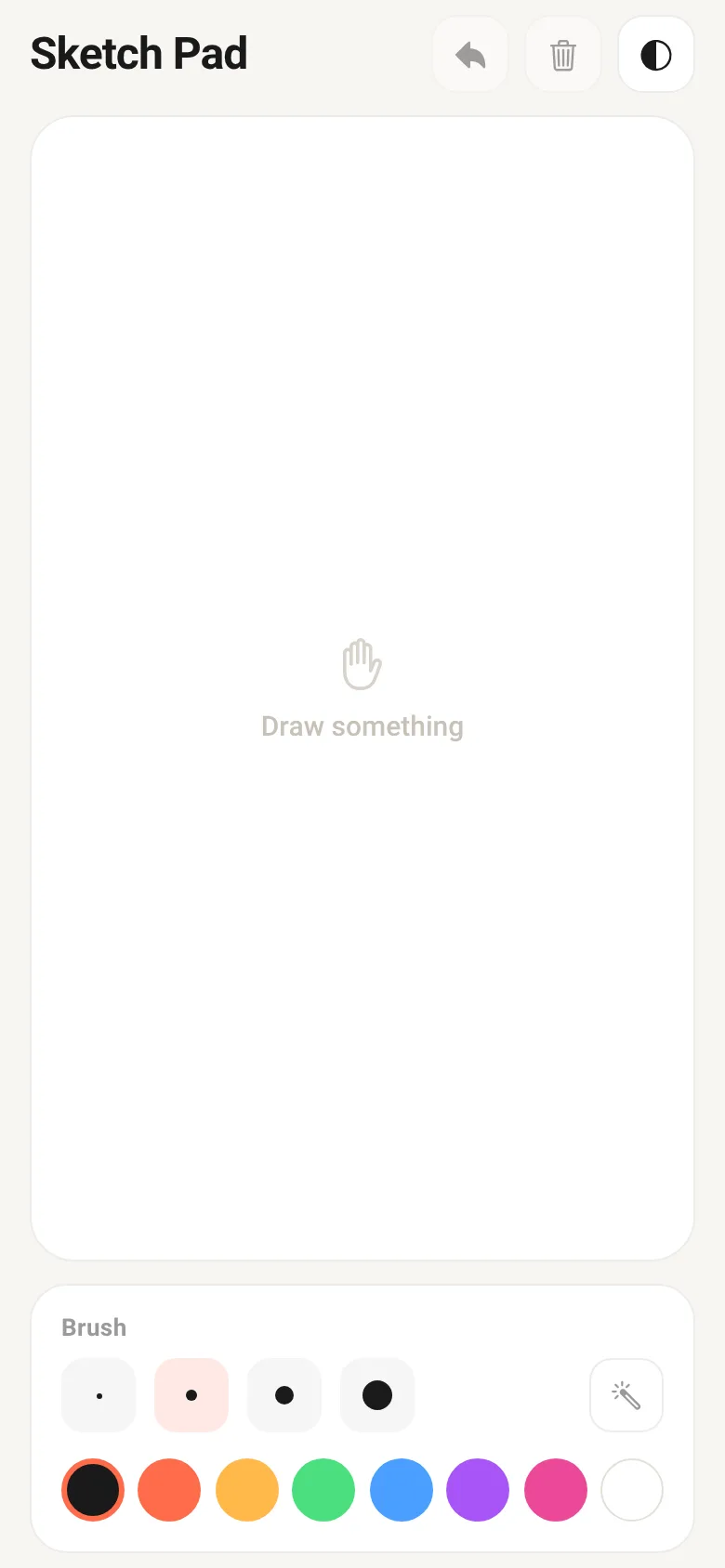
When you want to sketch ideas or doodle without learning a complex tool, Doodle Pad gives you a clean canvas. Draw by dragging your finger across the screen. The app smooths your strokes automatically, lets you pick from eight colors or erase with a touch, and switch between light and dark backgrounds to suit your mood. Undo removes your last stroke, and clear wipes the whole canvas.
What it does
You see a large canvas in the center with a toolbar at the top (undo, clear, background toggle) and brush controls at the bottom. Drag your finger to draw. Tap any of four brush size dots to change how thick your line is. Tap a color swatch to pick that color; tap the wand icon to switch to eraser mode, which paints over strokes in the current background color. Tap the contrast icon to cycle between white, dark, and cream backgrounds.
Key features
- Four brush sizes Choose from four preset sizes: 4, 8, 14, or 22 pixels, plus a thicker eraser.
- Eight-color palette Black, coral, orange, green, blue, purple, pink, and white swatches ready to tap.
- Eraser mode Tap the wand icon to erase strokes by painting with the current background color.
- Smooth strokes Finger movements are automatically smoothed with midpoint interpolation for a natural look.
- Background toggle Cycle between white, dark, and cream backgrounds with one tap.
- Undo and clear Remove the last stroke or wipe the entire canvas instantly.
How to use it
- Tap the canvas and drag your finger to draw a stroke.
- Tap any brush size dot to change how thick your lines are.
- Tap a color swatch to change drawing color, or tap the wand to switch to eraser mode.
- Tap the contrast icon at the top to change the background color.
- Tap the undo arrow to remove the last stroke, or tap trash to clear everything.
Who it’s for
People who want a quick, simple drawing app on their phone for sketching, doodling, or simple note-taking without distractions or complex menus.
The app’s share card (1200×630)
Questions and answers
How do I start drawing?
Tap and drag your finger across the canvas. Your strokes will appear smoothly as you move.
Does the app save my drawing?
Doodle Pad stores your current drawing while the app is open. The drawing resets when you close and reopen the app; there is no automatic save to your device.
Can I draw on my tablet?
Yes, Doodle Pad works on any device that runs the app, including tablets and larger phones.
How do I make thin or thick lines?
Tap one of the four brush size buttons at the bottom. A smaller dot makes a thinner line; a larger dot makes a thicker line.
More art & design apps
- Shot List · Plan video scenes with shot cards, durations, and location tags. Check off shots as you film to track progress.
- Plot Machine · Spin five reels to generate random story plots with hero, goal, obstacle, setting and twist. Lock favorites and save combinations you love.
- Gravity Sandbox · Flick to launch planets into orbit around a star. Watch gravity create trails, collisions merge masses, and experiment with preset scenarios.
- Contrast Checker · Check text and background color contrast against WCAG standards, see the ratio, and get automatic suggestions for passing colors.
- Pixel Studio · Draw pixel art with a curated palette, mirror mode, and 4-frame animation. Export frames as PNG.
- Pixel Board · Paint one pixel at a time on a shared canvas with everyone viewing and editing in real time. A collaborative art experience.