Mobile app · Productivity
Teras Terminal: Five AI Sessions in Your Pocket
Write, learn, brainstorm, plan, and chat with five different AI sessions on your phone, with saved replies and custom writing styles.
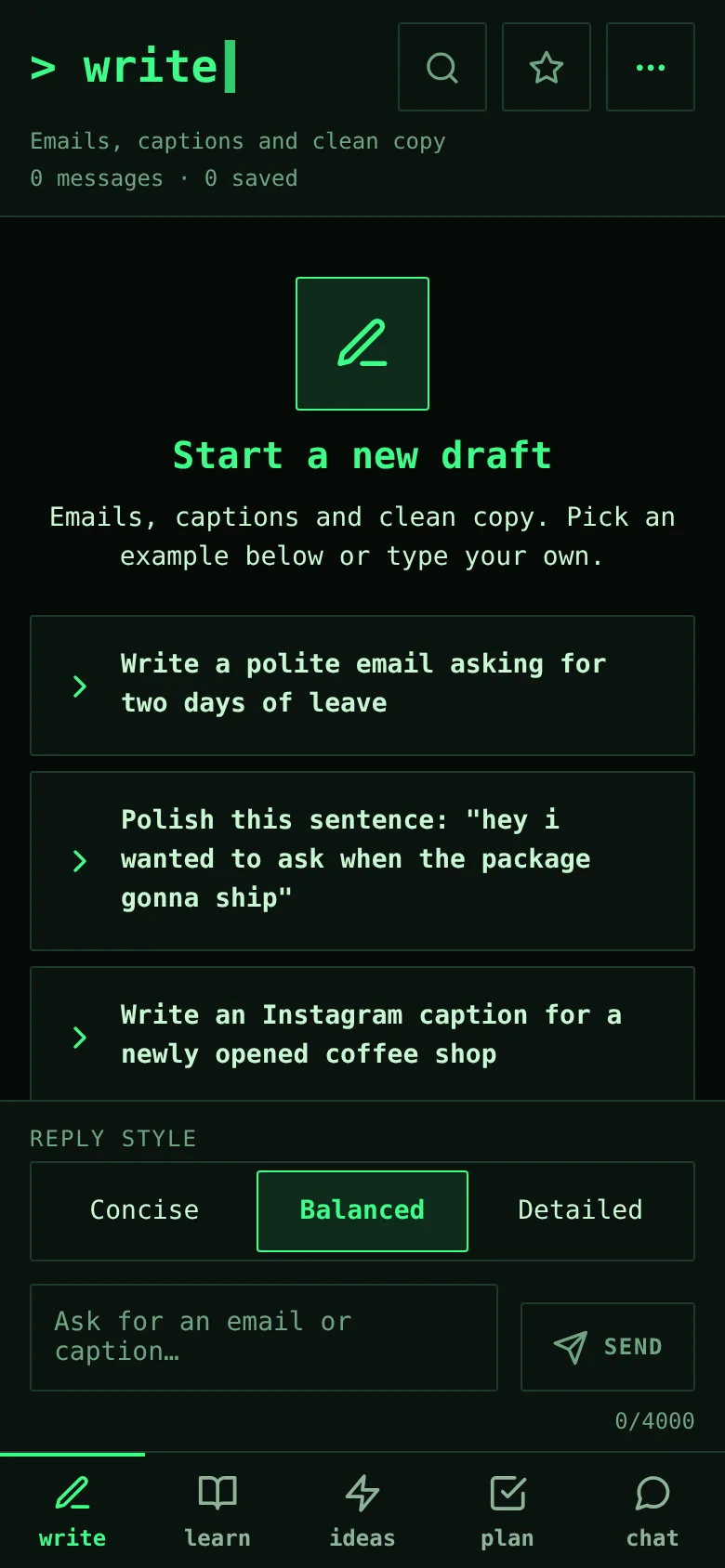
You want to use AI for different tasks, but switching between apps breaks your focus. Teras Terminal gives you five dedicated AI chat sessions—one for writing, one for learning, one for ideas, one for planning, and one for casual chat. Each session keeps its own history on your phone, remembers your reply style preference, and lets you save, edit, and resend any message.
What it does
Open Teras Terminal and tap one of five tabs at the bottom to enter a different AI session. Type a message or tap a starter example to begin. The AI responds in a terminal-style interface. You can save any AI reply, switch the reply style for that session, edit and resend your own messages, or delete any message. Search the current session by word, view all saved replies in one panel, or export the entire conversation as text.
Key features
- Five AI Sessions Each tab runs its own conversation thread: Writing, Learning, Ideas, Planning, and Chat.
- Save and Organize Replies Mark AI responses as saved and view them all in one panel without losing them in history.
- Reply Styles Choose how the AI writes in each session—switch styles anytime and the session remembers your choice.
- Edit and Resend Click edit on any of your own messages, change the text, and resend it; history after that point is cleared.
- Search and Export Search the current session for any word, or export the whole conversation as a text file to share or save.
- Works Offline All message history lives on your phone; no data is sent to a cloud or shared with others.
How to use it
- Open the app and tap one of the five session tabs at the bottom to pick a conversation topic.
- Type a message in the input field at the bottom or tap a starter example to begin.
- Read the AI's response, then save it, change the style, edit your message, or delete it using the buttons on each message.
- Switch tabs anytime to jump to a different session; each keeps its own history.
- Tap the menu icon to search the session, view saved replies, or export the conversation.
Who it’s for
Anyone who uses AI for multiple purposes—writers, students, planners, and creative thinkers who want quick access to AI without leaving their phone or losing context.
What’s new in this version
English version with hacker terminal theme design, new capabilities including search, saved reply management, and reply style switching to make the app more attractive and valuable to users.
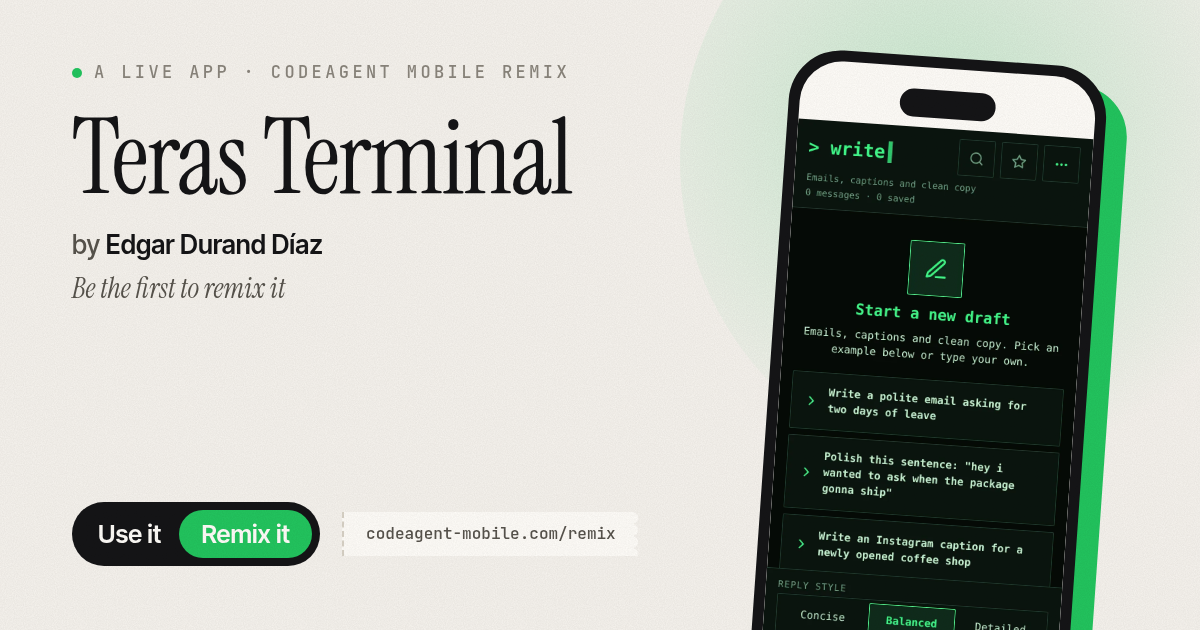
The app’s share card (1200×630)
Questions and answers
Does the app save my messages?
Yes. All conversations are saved on your phone automatically. Each session keeps its own history, and you can clear a session anytime from the menu.
Do I need an internet connection?
Yes, you need internet to send messages to the AI and receive replies. The history itself stays on your phone and works offline.
Can I use this on my phone?
Yes. Teras Terminal is built for phones. It works on iOS and Android.
How do I share a conversation?
Open the menu, tap Export, and the app will copy or share your conversation as text. You can then paste it anywhere or send it.
More productivity apps
- Historial Clínico Pet · Sistema para registrar y gestionar el historial médico completo de perros y gatos: vacunas, visitas, tratamientos, peso y avisos de vencimiento.
- Icebreakers · Swipe through fun, deep, work, and family icebreaker questions and save your favorites for parties and teams.
- Pitch Timer · Write cue cards, pick a 30/60/90-second timer, and rehearse your pitch with haptics and per-card timing feedback.
- Sun Arc · See the sun's arc across the sky for any latitude and day, with sunrise, sunset, day length, and golden hour windows.
- Big Text · Flash giant text across a room in auto-fit or scrolling marquee mode, with color themes and a gentle blink for safety.
- Shot List · Plan video scenes with shot cards, durations, and location tags. Check off shots as you film to track progress.