Every post is an app. Remix it into yours.
A feed of apps that already work, on the web or your phone. Say what you’d change and get your own copy in minutes.
Free to use. No account needed to try one.


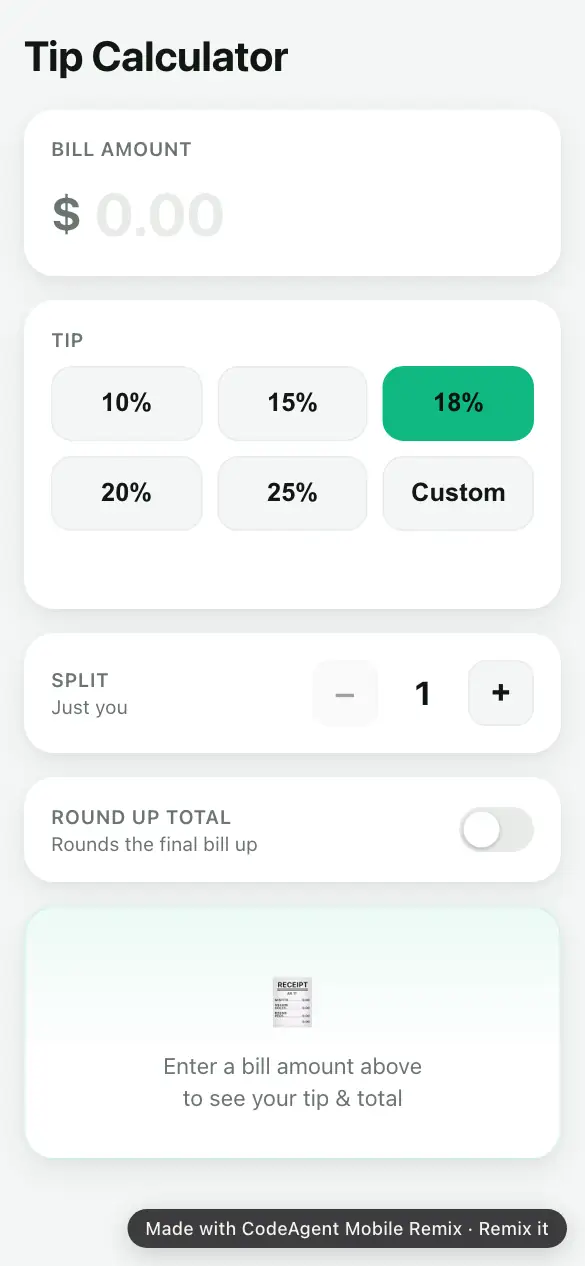
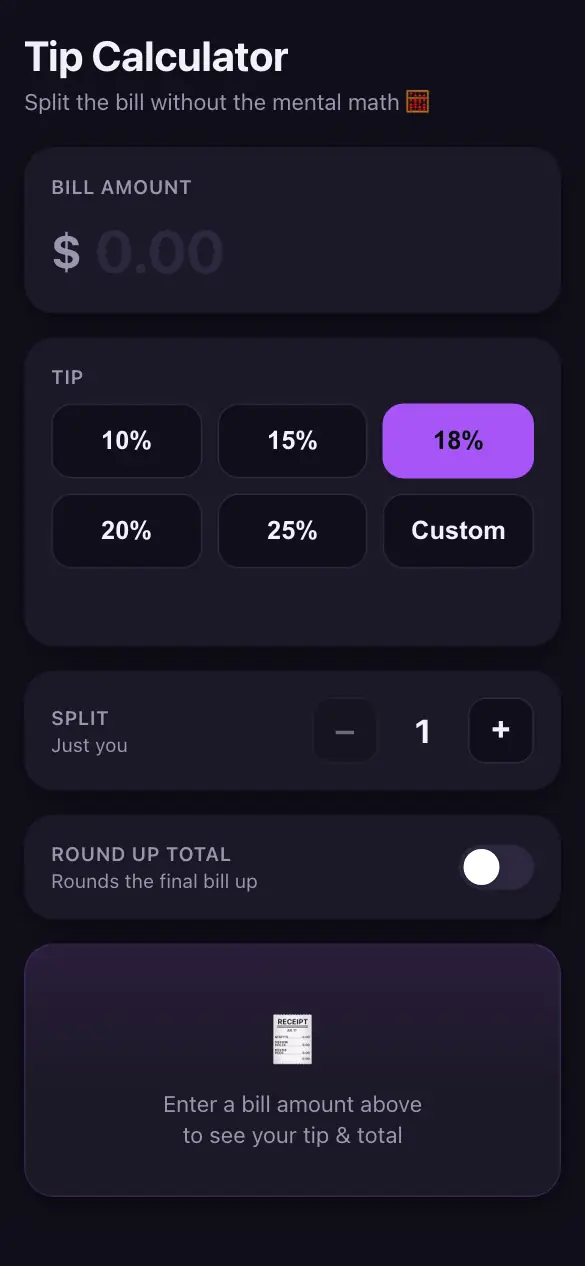
Publish it. Send the link.
Your copy opens in any browser. Nothing to install, no account needed.
From idea to the app stores.
Any phone app you make on Remix can become a real Android app on Google Play, published in your own developer account. No code, no Android Studio. The App Store is next.
- Describe it. Say the phone app you want, by text or voice, or remix one from the feed.
- We build it. You get a working native app to try on your phone first, and you change it with a sentence.
- Publish it to your Google Play. A one-time setup of about 15 minutes, then every release is a few taps. We handle the builds, signing and updates.
Needs your own Google Play developer account (a one-time US$25 fee to Google). New personal accounts run Google’s closed test before going public.
Publish to
- Google Play Available now
- The App Store Coming soon

CodeAgent for AI coding agents
Run Claude Code, Codex, Cursor or GitHub Copilot on your machine or in the cloud, and supervise them from your phone. Prompt by text or voice, review diffs and approve each step from anywhere.
That’s the whole idea.
From here on it’s the real feed. Keep scrolling. Two remixes a month are free.
- Free to use every app
- 2 remixes free every month
- $0.50 per remix after that. Bigger apps can take more; you see the price first
- Pro $19.99/mo 40 remixes a month + the Advanced console
Have an account? Sign in · Pricing · Advanced console: take an app further with AI coding agents














Orrery
The planets orbiting at real relative speeds. Warp time, tap a world for its facts.
Featured
Split the Bill
Split a restaurant bill evenly or by item, with a tip slider for everyone.
Featured
Neon Snake
Classic snake with glowing trails, swipe or arrow keys, and rising speed.
Featured
Circle of Fifths
Turn the wheel to any key to see its scale, signature and chords. Tap a chord to hear it.
Featured
Moon Phase
Tonight’s moon, the next full and new moon, and a month of phases.
Featured
Gradient Studio
Build linear, radial or conic CSS gradients with draggable stops and copy the code.
Featured
Memory Match
Flip cards to find emoji pairs against the clock, on three difficulties.
Featured
Breathe
A breathing coach with an expanding circle for box breathing and 4-7-8.
Featured